20 things you can use Meta Muse for that are actually useful

Meta Muse is a personal AI agent you can talk to through an app, the web, or WhatsApp. It has its own cloud computer and browser, can use connected services, and can keep working after you close the app. You describe a job, give it the access it needs, and check back when it has a result or needs a decision. That’s what agentic AI means in these examples.
Muse attracted an estimated five million US downloads within 22 days of launch, helped by a substantial advertising push. I understand the appeal: most of us already have a list of small jobs we’d happily hand over.
I work at GitHub and use AI extensively for software projects, studying, and everyday tasks. I’ve put Muse through actual errands: an Xfinity negotiation, credit-card offer enrollment, shopping searches, and the paperwork for an unclaimed-property claim. I also built a browser setup on a Raspberry Pi at home to help it with sites that blocked its hosted browser. That extra setup helped with Xfinity and Amex; the calendar and research examples are easier starting points.
These 20 jobs come from that experience. Some are completed, some are ongoing watches, and a few are reminders waiting for their date. Adapt the prompts by replacing anything in brackets with your details. Connect the relevant accounts and take over for logins when needed.
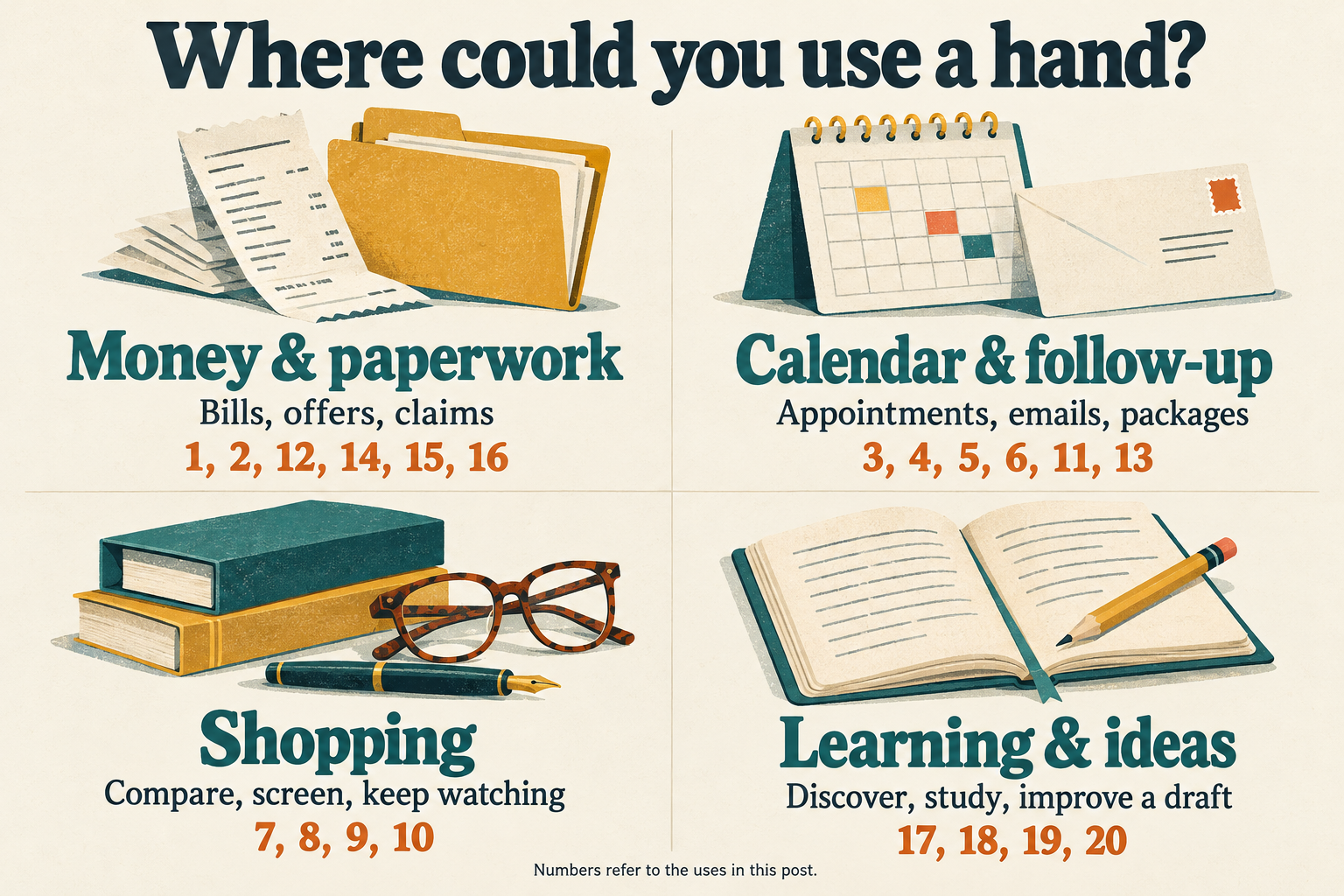
Pick the kind of help you need, then look for the numbered examples below. Tap any graphic for a larger view.
-
Get through the internet-bill negotiation you’ve been avoiding
Muse handled the Xfinity live chat and secured a monthly discount for twelve months while keeping my existing service. I reviewed the terms and submitted the consent form.
Give Muse your current bill and the limits that matter: speed, contract length, bundles, or extra services. Have it bring the full offer back before you commit. Mine needed the home browser linked above.
Contact [provider] through its online chat and ask about lowering my bill. I currently pay [amount]. Keep my current service and speed, and don’t add a bundle or contract extension. Bring me the exact price, duration, and conditions before accepting anything.
-
Clear the credit-card offers you keep meaning to add
Muse worked through my available Amex offers after I signed in through the Pi browser. The two cards ended with 375 and seven enrolled offers, including some enrolled before the run. When the session expired, I logged back in and it continued.
Tell it which card to prioritize. Amex requires enrollment before a qualifying purchase, and a specific offer can only be added to one of your eligible cards. Adding an offer doesn’t itself save money.
After I sign in, add the available Amex offers, prioritizing [card] when the same offer appears on more than one card. Follow the offer rules. Report what you added and anything left unfinished. Pause if you need me to log in again.
-
Turn a photo of appointments into actual calendar events
My physical therapy office gave me a printout of all my appointments. Rather than keep track of that sheet of paper, I snapped a picture and Muse put all seven appointments on my digital calendar for me.
Connect your calendar, upload a clear photo, and specify the time zone and appointment length if the printout doesn’t include them. Check the dates against the original afterward.
Add the appointments in this photo to [calendar]. Use [time zone] and [duration] for each event. Include the location. Ask me about anything you can’t read, and show me the dates and times when you’re done.
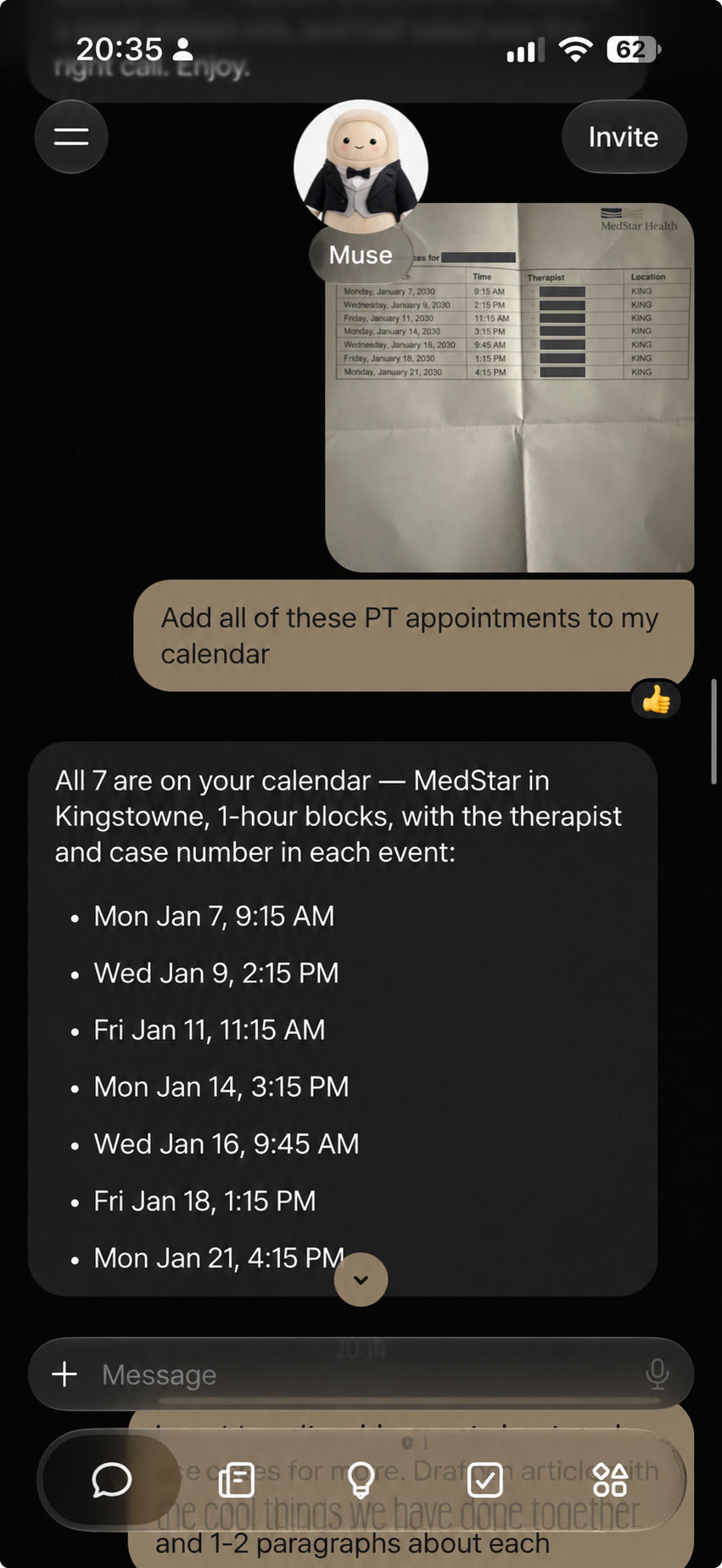
A photo becomes seven calendar events. The screenshot uses illustrative dates and times in place of my actual appointment schedule.
-
Book the car service that keeps slipping down your list
Muse researched my Ioniq 5’s service needs and warranty coverage, then booked through the dealership’s website. When the scheduler didn’t have an exact match for the work I wanted, it put the details in the booking notes.
Give it the vehicle, requested work, preferred shop, and times you can attend. Ask it to distinguish a confirmed service from something merely requested in the notes.
Find an appointment at [shop] for [vehicle and service]. I’m available [windows]. Check any booking fee or cancellation terms and bring me the best option. After I approve, book it, include the requested work in the notes, and tell me what the shop has actually confirmed.
-
Set up a meeting, video link included
With Google Calendar connected, I tested creating an event with a Google Meet link and checked that it appeared on my iPhone. It’s useful when the meeting is already agreed and the remaining job is entering the details.
Specify the date, time zone, duration, and calendar. If you want invitations sent, give Muse the attendees and make that part of the request explicit.
Create a [duration] meeting called [title] on [date] at [time and time zone], with a Google Meet link. Use [calendar]. The attendees are [names and email addresses]. Show me the event and attendee list before sending invitations.
-
Get the follow-up email sent
I connected a dedicated Gmail account for assistant tasks. Muse used it to send an authorized follow-up when a data-broker opt-out needed an email instead of a working web form.
Give it the recipient, what you need, and the facts it can include. Read the draft before approving it, especially if it contains personal details or makes a commitment.
Draft an email from [account] to [recipient] asking for [outcome]. Include these facts: [details]. Keep it short and show it to me before sending. After I approve, send it and confirm whether it went through.
-
Compare the price you’ll actually pay
When I wanted a PopWallet+, Muse compared designs, shipping costs, and promo codes. The cheapest-looking product page didn’t settle the question: different colors had different prices, and some shipping totals were still estimates.
Give it the exact model, acceptable variants, and delivery area. Ask it to label unverified shipping, tax, and coupon claims so you know what still needs a checkout check.
Find the lowest total delivered price for [exact product] to [ZIP code]. I will accept [colors or variants]. Include shipping and tax where available, check current promo codes, and label anything estimated or unverified. Send purchase links for the best options.
-
Give that eBay bargain a second look
Muse found my Ray-Ban New Wayfarers on eBay and checked the seller, listing, and total delivered price. For a used or resale purchase, that screening is useful alongside the price search.
Send the listing and explain your concerns. Ask it to examine the model, photographs, condition, seller history, and return terms. Treat its findings as evidence to review; photographs don’t guarantee authenticity.
Review this listing: [URL]. Is it the exact [model] I want? Check the actual-item photos, condition, seller feedback, return policy, and total price. Flag inconsistencies and questions I should resolve before buying.
-
Keep looking for the thing you’re happy to wait for
I have a daily watch for a Montblanc 149 fountain pen and a weekly Folio Society book search, each with a budget. The book criteria include a slipcase, actual photos, acceptable condition, and shipping within the total budget.
Define what qualifies, how often to check, and when to stop. Ask for new matches only. Auction prices need special care because a bid under your limit can finish well above it.
Every [frequency], search [sites] for [item] under [budget] including shipping. Require [condition and other criteria]. Send only new qualifying listings, with links and total prices. Label auction bids separately from purchase prices. Stop when I tell you I’ve bought one.
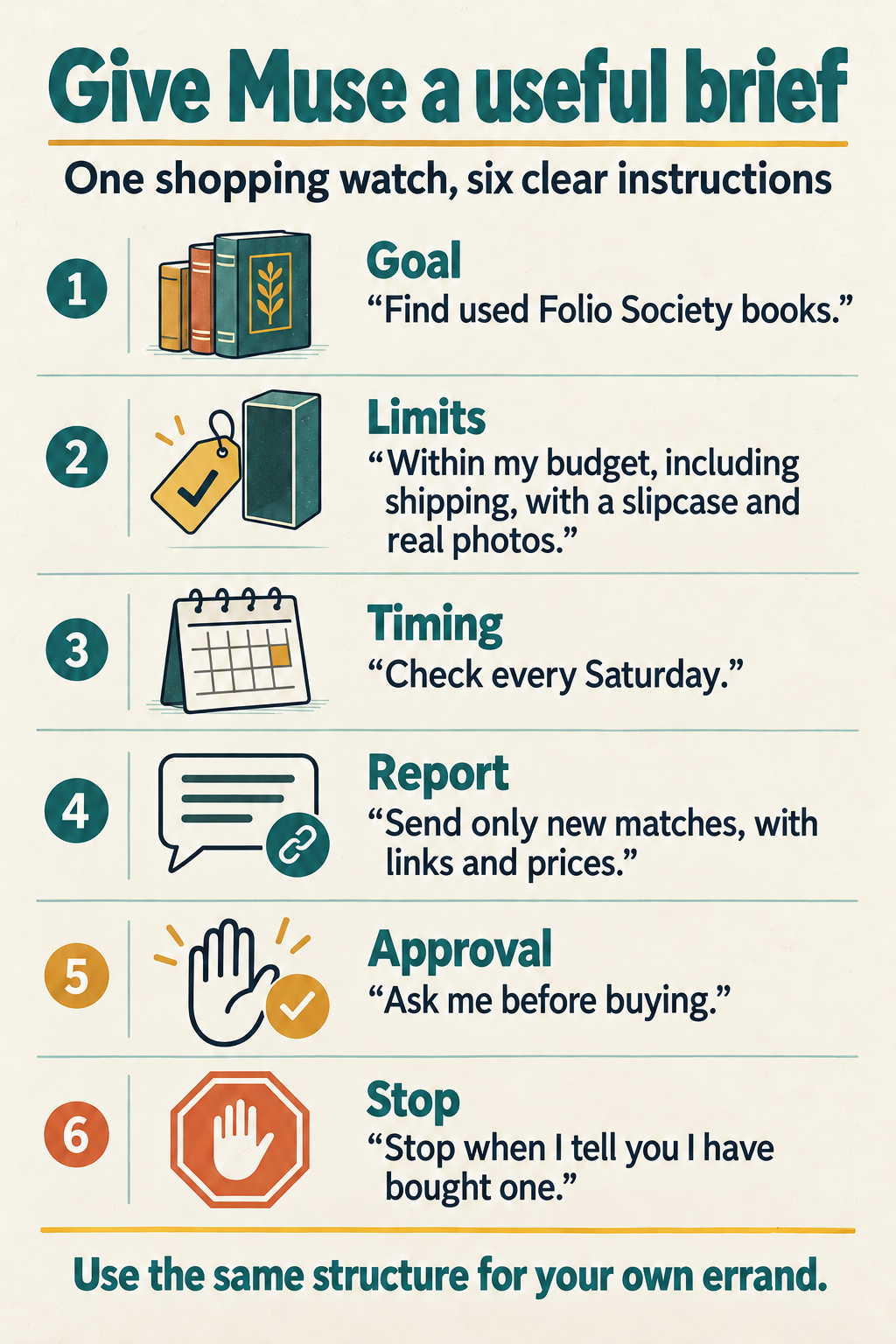
A shopping watch makes a good template: say what qualifies, what you want to hear about, and when the job ends.
-
Hear about a limited-edition launch while you can still decide
Muse flagged a Folio Society edition of Grimms’ Fairy Tales. I passed, but I still want future releases brought to my attention. My secondhand-book budget and my interest in new editions are separate preferences.
Name the publisher or product line and explain whether you want an early heads-up, a launch-day reminder, or both. This is a release alert, so keep it separate from a bargain watch.
Watch [brand’s official announcements] for [product line]. Tell me when a release date is confirmed and remind me [when] before it goes on sale. Include the price, launch time with time zone, and official link. Ask me before buying or reserving anything.
-
Track packages until there’s nothing left to track
Muse followed three UPS shipments and the USPS delivery containing my sunglasses, then ended the checks after delivery. It misread one tracking number along the way, and I corrected it.
Paste tracking numbers when possible. If you use a receipt photo, have Muse read the numbers back first. Set a checking frequency and tell it which changes deserve a notification.
Track these packages once a day: [carrier and tracking numbers]. Tell me about delivery, exceptions, or a changed delivery date. Use the carrier’s tracking page, and stop checking each package once it’s delivered.
-
Remember when your discount expires
After the Xfinity negotiation, Muse scheduled a September 2027 reminder to renegotiate before the twelve-month discount ends. The reminder will include the terms, so I won’t have to dig them up again.
Give it the expiration date and enough lead time to act. Include the current price, what changes afterward, and any constraints you want remembered.
Remind me on [date] that my [discount or contract] expires on [date]. Include the current price, the expected price afterward, and these conditions for renewing: [limits]. Confirm the reminder is scheduled.
-
Remember to cancel streaming when the season is over
My Monumental+ reminder depends on the Washington Capitals finishing their season, playoffs included. Muse is set to begin checking in April 2027. This is a future job; I haven’t seen it complete the final reminder yet.
Define the event that should trigger the message. A condition such as playoff elimination requires repeated checks, while a known renewal date only needs a dated reminder.
Starting [date], check weekly whether [team’s] season is over, including playoffs. Once it is, remind me to cancel [service], link to the result that confirms it, and stop the checks. I’ll handle the cancellation.
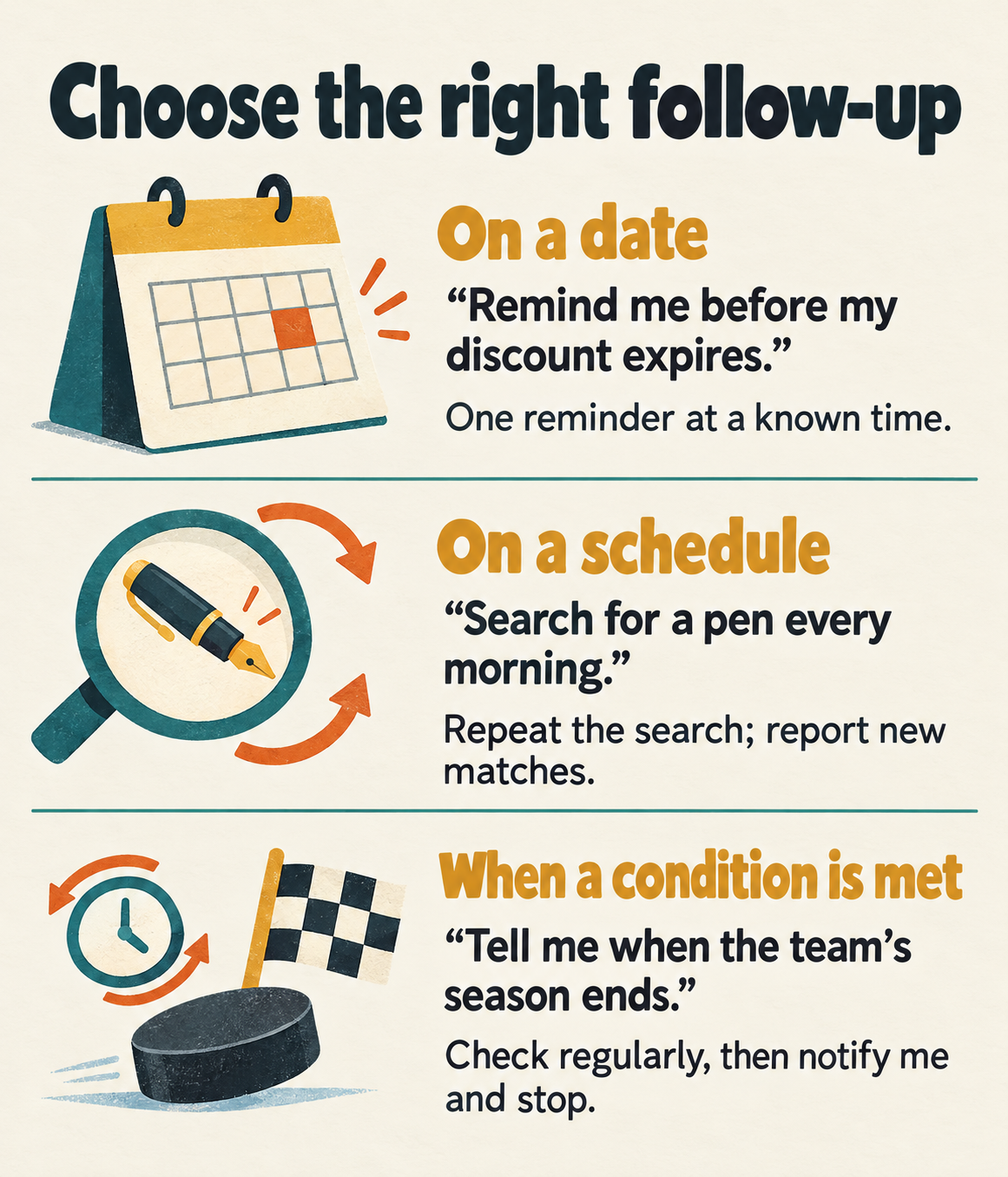
Choose a date when you know it, a schedule for an ongoing search, or repeated checks for a condition. Spell out when the checks should stop.
-
Get through the unclaimed-money paperwork
Muse helped me search Virginia’s unclaimed-property records and submit a claim that ultimately covered ten properties. I signed the forms and supplied identification; it uploaded the documents. The state confirmed receipt, and the claim is still processing.
Start with your state’s official program and verify that each match belongs to you. Muse can organize the paperwork, while you supply the facts and complete required signatures.
Find the official unclaimed-property program for [state]. Help me review possible matches using the details I provide. Show me uncertain matches and the required documents. Prepare the claim for my review, and ask before submitting anything.
-
Take the first step on an old family insurance policy
My family believes an old life insurance policy existed. Muse helped submit a request through the NAIC Life Insurance Policy Locator. Having Muse sort out the requirements and paperwork made a difficult process much easier.
The locator is for deceased relatives’ policies. Have Muse explain the official requirements, organize what you have, and identify missing information. Supply sensitive information through the official form when needed.
Help me prepare an NAIC Life Insurance Policy Locator request for a deceased relative. Explain the official requirements and make a checklist of what I need. Don’t guess missing information. Let me review the request and enter sensitive details before submission.
-
Make progress on those people-search opt-out forms
I used Yael Grauer’s Big Ass Data Broker Opt-Out List and asked Muse to work through the opt-outs, with a monthly sweep afterward. Some requests received processed confirmations; others needed verification links or stayed blocked. I handled some of those links myself, while Muse kept track of the work across sites.
Share the list with Muse and begin with a few brokers. Check ambiguous matches yourself, and have Muse distinguish a submitted request, a confirmed removal, and a search that found no matching record.
Use https://github.com/yaelwrites/Big-Ass-Data-Broker-Opt-Out-List/ to find the opt-out instructions for [broker sites]. Check for records that match me and show me uncertain matches. Submit the opt-outs I approve, track verification steps, and report confirmed removals separately from pending or blocked requests. Recheck monthly for new listings.
-
Build a feed around the things you care about
My Muse Feed surfaces topics such as ChatGPT and Home Assistant. It gives me a place to notice an update and start a conversation about whether it matters for something I use.
Name specific interests and the kind of update you want. Ask for source links and dates so you can check the underlying information before acting on it.
Make me a feed about [interests]. Prioritize useful releases and changes that affect [products or plans I use]. Include source links and dates, and explain briefly why each item might matter to me.
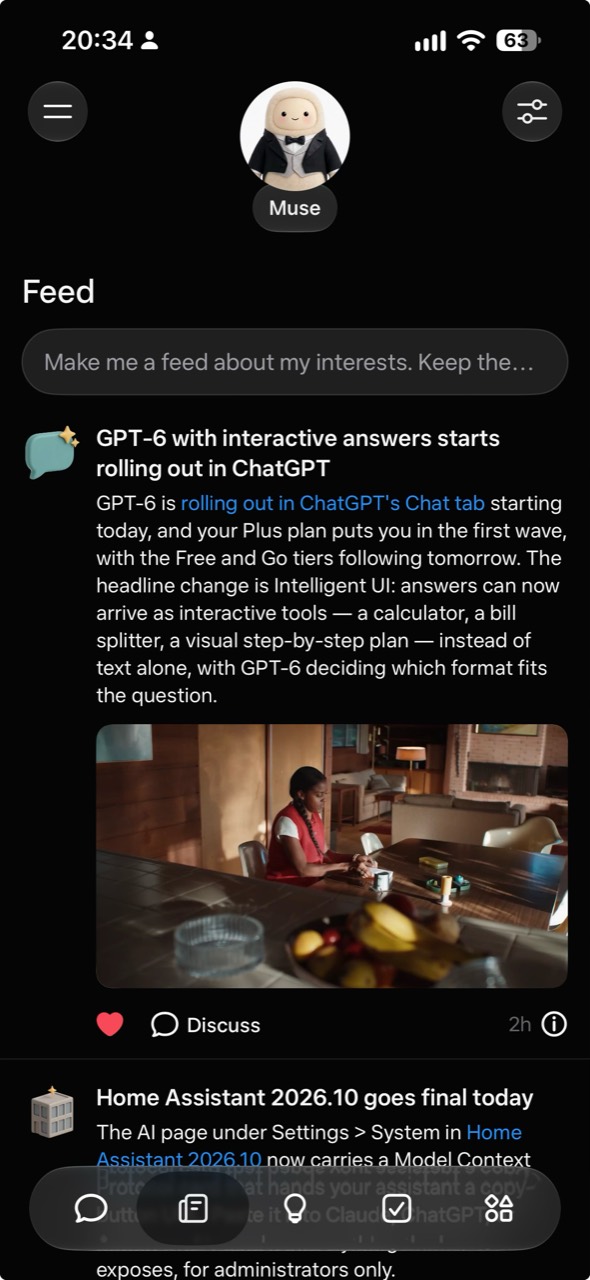
A snapshot of my Feed. The items give me a starting point for a follow-up conversation.
-
Get suggestions for what to hand off next
Muse’s Ideas tab proposed screening an upcoming Folio Christmas release against my interests in food writing, classic science fiction, and exploration. That was a specific job I could decide to assign.
Give Muse some context about your recurring chores and interests. Ask it to suggest small, concrete tasks and explain what access or information each would require. Choose one before putting it to work.
Based on the interests and recurring chores I’ve shared, suggest five specific tasks you could take off my list. For each, explain what you’d do, what you need from me, and how we’d know it was finished. Let me choose which to start.
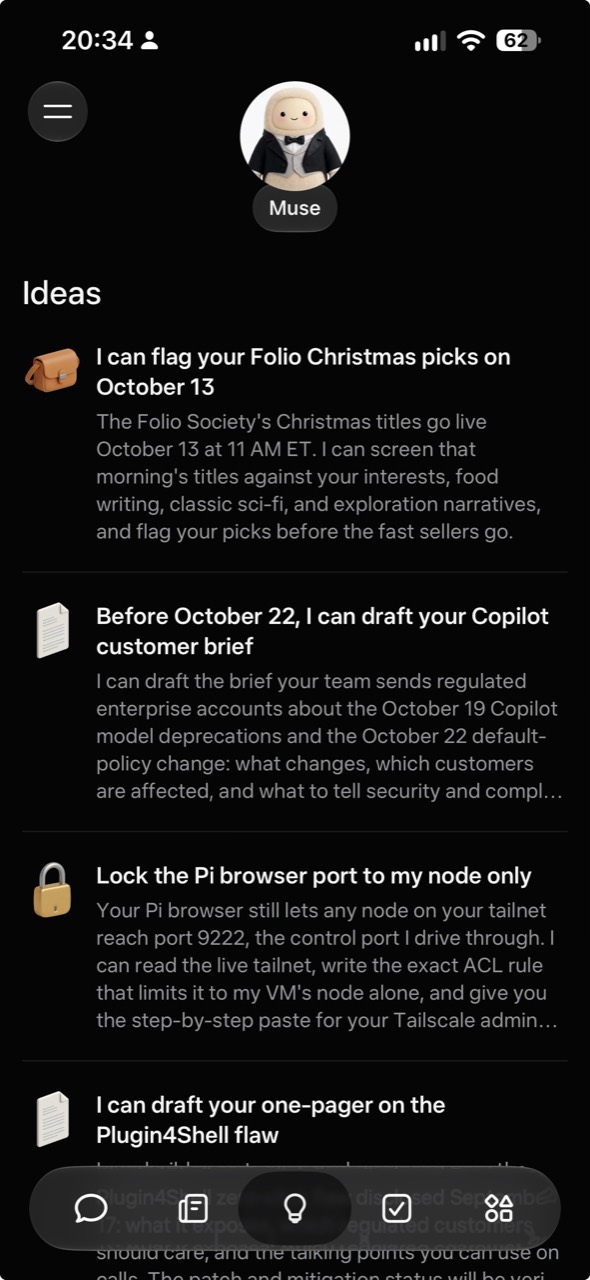
The Folio suggestion turns preferences I’ve already shared into a proposed task.
-
Get quizzed on what you keep getting wrong
I used Muse during my GitHub certification preparation. I wanted one question at a time, with the answer hidden until I responded. Some generated questions had mistakes, so checking against official material mattered.
Supply the study guide or reference material. Ask for explanations after each answer and more practice on the topics you miss.
Quiz me using this study guide: [link or attachment]. Ask one question at a time and wait for my answer. Then explain the result with a reference to the source. Track topics I miss and revisit them with different questions. Check that each answer key is supported.
-
Get useful criticism of your writing
Muse reviewed my certifications post section by section and helped identify what needed tightening. I ask where a draft is weak and why, so I can decide which edits to make.
Share the draft, audience, and intended point. Start with feedback, then ask for a revision of the sections you agree need work. I also like Humanizer, an editing skill that flags habits such as inflated claims, filler, and repetitive phrasing. You can share its writing guidance with Muse and ask it to apply the relevant edits while keeping your voice.
Read this draft for [audience]. Tell me which section is strongest, which is weakest, and why. Use the editing guidance at https://github.com/blader/humanizer to flag repetition, filler, and inflated language. Check for unclear reasoning and claims that need evidence, too. Suggest specific edits while preserving my meaning, facts, links, and voice. Give me feedback before rewriting.
I’d start with one small errand, like entering a printed schedule or comparing the delivered price of something you already intend to buy. Check the result and adjust the instructions. Once a recurring job works well, tell Muse how often to repeat it and when to stop.